

HPC-GPT: Deploying Private LLMs on the HPC
With the rise of large language models (LLMs) like chatGPT, many researchers and developers are interested in deploying their own private instances for various applications. Using private models ensures data privacy and allows for customization to specific use cases. In this post, I’ll guide you through the steps to deploy a private LLM on the Unimelb HPC cluster (Spartan) using Ollama, an open-source platform for running LLMs locally.
Setup (only do this once)
SSH into the login node and create a hpc-gpt directory in one of your project folders (or scratch spaces).
export PROJECT_DIR=/data/gpfs/projects/punim1654/hpc-gpt # replace punim1654 with your project path
mkdir -p $PROJECT_DIR && cd $PROJECT_DIR
Warning: Ensure you have enough storage space in your project for the model files, as they can be quite large (several GBs).
Install the ollama package:
curl -L -o ollama.tar.gz https://github.com/ollama/ollama/releases/latest/download/ollama-linux-amd64.tgz
tar -xzf ollama.tar.gz
rm ollama.tar.gz
ln -s $PROJECT_DIR/bin/ollama $HOME/.local/bin/ollama
Ensure that ~/.local/bin is in your $PATH then check that ollama is installed correctly:
ollama -v
Create a job script to run the LLM on the HPC. Below is an example job script (hpc-gpt.job):
#!/bin/bash
#SBATCH --job-name=hpc-gpt # DO NOT CHANGE

#SBATCH -p gpu-a100-short  # specify GPU partition
#SBATCH --gres=gpu:1 # request 1 GPU
#SBATCH --mem=16G # request 16GB memory
#SBATCH --time=02:00:00 # set a time limit of 2 hours

export OLLAMA_HOST=127.0.0.1:11434

# set OLLAMA_MODELS to the models directory
# this is important so ollama doesn't try to use
# the default path in $HOME/.ollama/models
# we use the path relative to the ollama binary
# installed in your project directory
ollama_real_path=$(realpath $(which ollama))
export OLLAMA_MODELS=$(dirname $(dirname $ollama_real_path))/models

ollama serve
Submit the job to start the LLM server
Submit the job to the HPC scheduler using sbatch:
sbatch hpc-gpt.job
This will start the LLM server on a compute node. You can check the status of your job using squeue:
squeue -u $USER
Interact with the LLM on the HPC
Once the job is running you can now interact with the LLM using the Ollama CLI or any compatible client.
First, set up port forwarding to connect to the LLM server running on the compute node.
NODE=$(squeue -u $USER -n hpc-gpt -o '%i %N' | sort -nr | awk 'NR==1{print $2}')
ssh -f -N -L 11434:127.0.0.1:11434 $USER@$NODE
Then, you can send a prompt to a model with the ollama CLI:
ollama run qwen3-vl:2b "Hello, how can I use LLMs on HPC?"
You can start an interactive session with the model using:
ollama run qwen3-vl:2b
A list of available models can be found on the Ollama models page.
Note: If port 11434 is already in use you can change the local port in the -L option to another unused port (e.g., -L 11435:127.0.0.1:11434) and adjust the OLLAMA_HOST environment variable accordingly when interacting with the model.
OLLAMA_HOST=127.0.0.1:11435 ollama run qwen3-vl:2b "Hello, how can I use LLMs on HPC?"
Connect to the LLM server from your local machine
Once the job is running in a job, you need to set up port forwarding to connect to the LLM server from your local machine.
Replace wytamma with your HPC username and run the following command on your local machine:
export HPC_USERNAME=wytamma
export HOSTNAME=spartan.hpc.unimelb.edu.au

NODE=$(ssh ${HPC_USERNAME}@${HOSTNAME} \
    "squeue -u \$USER -n hpc-gpt -o '%i %N' \
        | sort -nr \
        | awk 'NR==1{print \$2}'")

ssh -N -J ${HPC_USERNAME}@${HOSTNAME} \
    ${HPC_USERNAME}@${NODE} \
    -L 11434:127.0.0.1:11434
You can now navigate to http://127.0.0.1:11434 in your web browser to confirm the LLM server is running.
If you have passwordless ssh set up you can create a script to automate starting the job and setting up port forwarding all from your local machine. An example script (start-llm-on-hpc) is provided in this gist.
Adding a Chat GUI
There are several open-source web-based chat interfaces that you can use to interact with your LLM server.
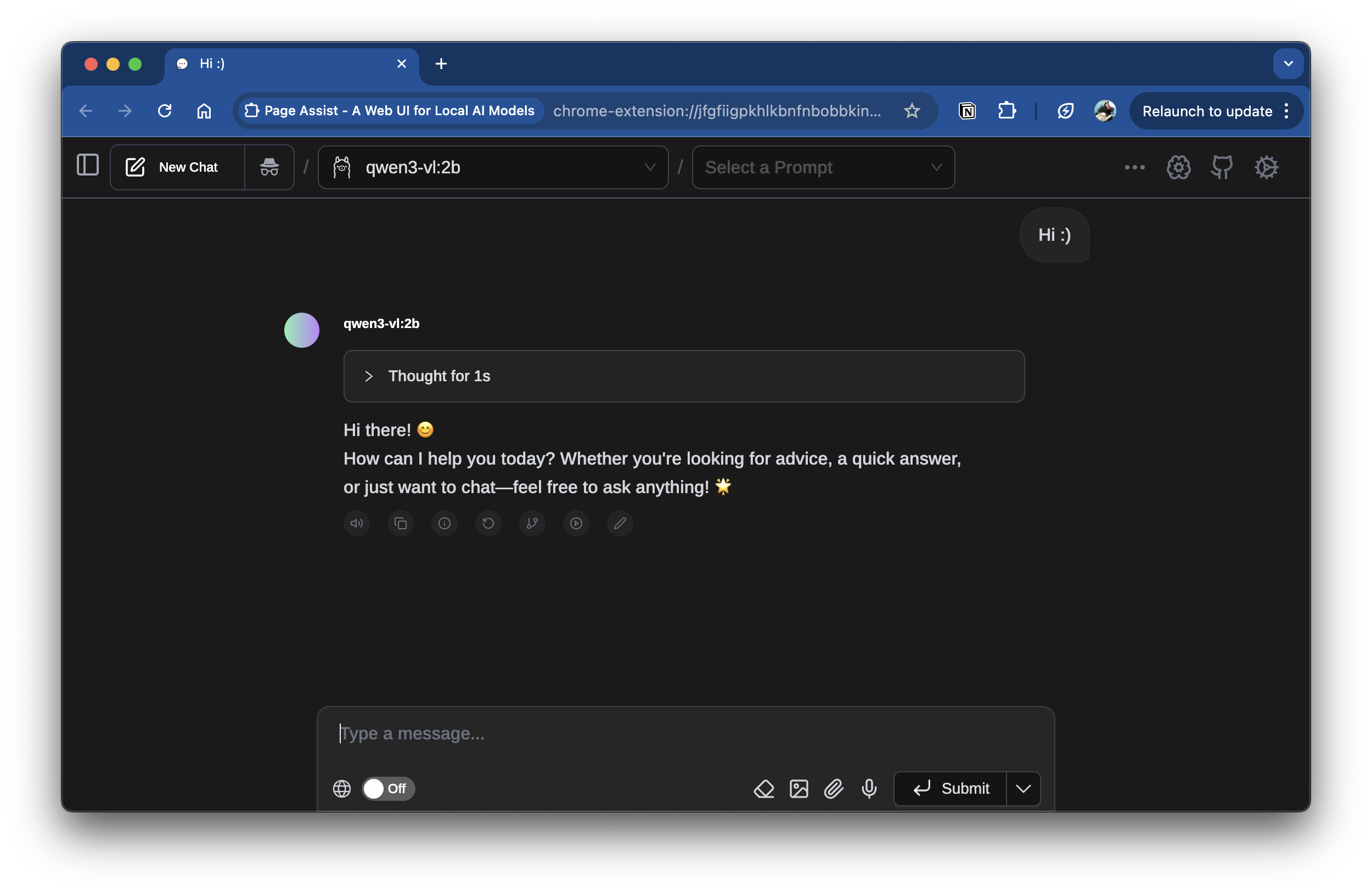
One such interface is Page Assist, a Chrome extension that provides a web UI for interacting with LLMs. Once you have set up port forwarding as described above, you can configure it to connect to the HPC LLM server by setting the API endpoint to http://127.0.0.1:11434.
Conclusion
In this post, I’ve detailed how to deploy a private LLM on an Unimelb HPC cluster using Ollama. This setup allows you to leverage powerful compute resources while maintaining data privacy. You can further customize the deployment by adding different models or integrating with various applications. If you have any questions or comments, please feel free to reach out.
Comments